OpenClaw Plugins: How to Extend Your AI Assistant's Capabilities
Learn how OpenClaw plugins work — MCP servers, custom tools, agent configs. Install web search, calendar, and other extensions to supercharge your AI assistant.
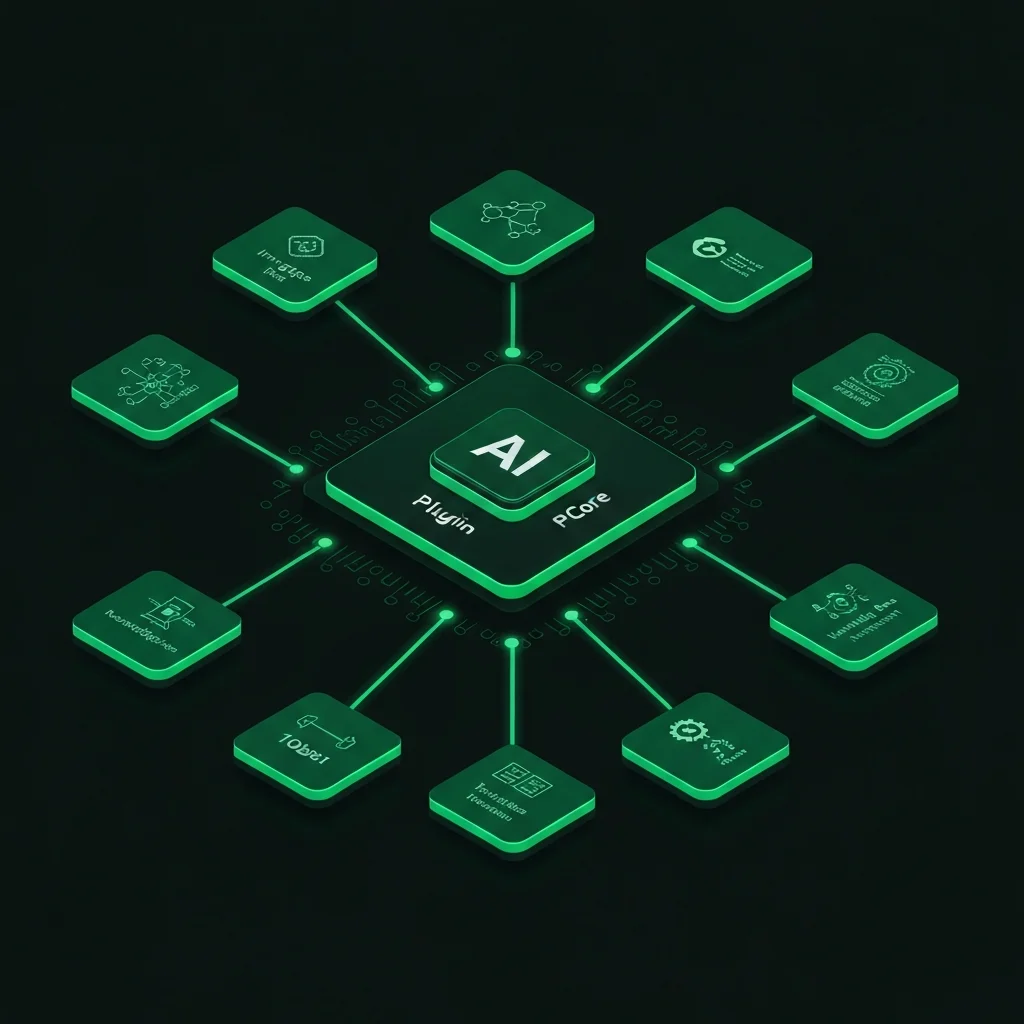
OpenClaw Plugins: How to Extend Your AI Assistant’s Capabilities
Out of the box, OpenClaw connects your messaging channels to an AI provider and handles conversation routing. But the real power of the platform comes from its plugin architecture — a modular system that lets you add tools, connect external services, and build specialised agent behaviours on top of the core gateway. This guide explains how the plugin system works and how to add the most useful extensions.
How OpenClaw’s Plugin Architecture Works
OpenClaw plugins follow the Model Context Protocol (MCP) — an emerging standard for AI tool interoperability that allows AI models to call external functions in a structured, type-safe way. When you install a plugin, you’re adding a set of tools that the AI model can invoke mid-conversation to retrieve data, perform actions, or connect to external APIs.
The plugin system has three layers:
- MCP Servers — standalone processes that expose tools via a defined interface. OpenClaw spawns these as child processes and communicates with them over a local socket.
- Custom Tools — lightweight JavaScript or TypeScript functions you write directly in the OpenClaw config directory, without needing a separate server process.
- Agent Configs — higher-level presets that combine a system prompt, a set of tools, and a persona into a deployable “agent” you can assign to a specific channel.
Installing Plugins
Plugins live in the plugins/ directory within your OpenClaw installation. To install a community plugin:
cd /opt/openclaw
npm install @openclaw-plugins/web-search
Then register it in config/openclaw.yaml:
plugins:
  - name: web-search
    package: "@openclaw-plugins/web-search"
    config:
      search_engine: "brave"
      api_key: "YOUR_BRAVE_SEARCH_API_KEY"
Restart OpenClaw to activate:
pm2 restart openclaw
The AI model now has access to a search_web tool. When a user asks a question that requires up-to-date information, OpenClaw will automatically invoke the search tool, retrieve results, and incorporate them into its response.
Useful Plugins to Install
Web Search
The most universally useful plugin. Without it, your AI assistant only knows what was in its training data (with a knowledge cutoff). With OpenClaw web search plugin, your assistant can retrieve current news, documentation, stock prices, sports scores, or any other live information.
Popular search backends include Brave Search (privacy-focused, $3/month for 2,000 queries), Tavily (optimised for AI retrieval), and SerpAPI (Google results).
Calendar Integration
The calendar plugin connects to Google Calendar or CalDAV-compatible calendar services. Your AI assistant can:
- List your upcoming events when asked
- Create new calendar events from natural language (“Schedule a call with Sarah next Tuesday at 2pm”)
- Find free time slots for meeting scheduling
Setup requires a Google OAuth2 credential or a CalDAV URL and credentials for self-hosted calendars (Nextcloud, Radicale).
plugins:
  - name: calendar
    package: "@openclaw-plugins/google-calendar"
    config:
      client_id: "YOUR_GOOGLE_CLIENT_ID"
      client_secret: "YOUR_GOOGLE_CLIENT_SECRET"
      refresh_token: "YOUR_REFRESH_TOKEN"
Memory and Knowledge Base
The memory plugin adds persistent context to your conversations. Without it, each conversation starts fresh with no recollection of previous interactions. With the memory plugin, OpenClaw stores a rolling summary of your conversations and retrieves relevant context when you ask follow-up questions days or weeks later.
npm install @openclaw-plugins/memory
This plugin uses a local vector store (typically SQLite with vector extensions) — no external service required.
Custom Tool Example
For simple tools, you don’t need a full MCP server. Create a file at plugins/custom/weather.js:
export const weatherTool = {
  name: "get_weather",
  description: "Get current weather for a city",
  parameters: {
    city: { type: "string", description: "City name" }
  },
  async execute({ city }) {
    const res = await fetch(`https://wttr.in/${city}?format=j1`);
    const data = await res.json();
    return data.current_condition[0];
  }
};
Register it in the config:
custom_tools:
  - path: "plugins/custom/weather.js"
Your AI can now answer “What’s the weather in Tokyo?” with real data.
Agent Configs: Building Specialised Personas
For power users, OpenClaw agent configs let you deploy entirely different AI personas on different channels. For example:
agents:
  - id: "work-assistant"
    name: "WorkBot"
    system_prompt: "You are a professional business assistant. Be concise and use bullet points."
    tools: ["web-search", "calendar", "memory"]
    channels: ["discord#work-general"]

  - id: "personal-assistant"
    name: "Personal AI"
    system_prompt: "You are a helpful personal assistant with a warm, casual tone."
    tools: ["web-search", "memory", "weather"]
    channels: ["telegram"]
This means your Discord work server gets a focused business assistant, while your Telegram gets a more conversational personal AI — both powered by the same OpenClaw instance and AI provider.
Plugin Ecosystem Growth
The OpenClaw plugin ecosystem is actively growing. Community-contributed plugins already exist for Notion, GitHub, Linear, Slack (read-only), RSS feeds, weather, and more. Check the official plugin registry at the OpenClaw GitHub repository for the latest additions.
Want more capability from your OpenClaw instance without managing the plugin configuration yourself? Our AI Feature Add-ons service handles plugin installation, configuration, and testing — turning your basic AI gateway into a fully tooled personal or team assistant.
Ready for Your Personal AI Assistant?
Free 30-minute consultation. We'll assess your setup and recommend the right OpenClaw configuration for you.
Talk to an Expert